Find your way around Stundenwerk
After this orientation, you will know the main areas and where to start your next task.
Before you begin
Section titled “Before you begin”- You are signed in.
- You have opened a project.
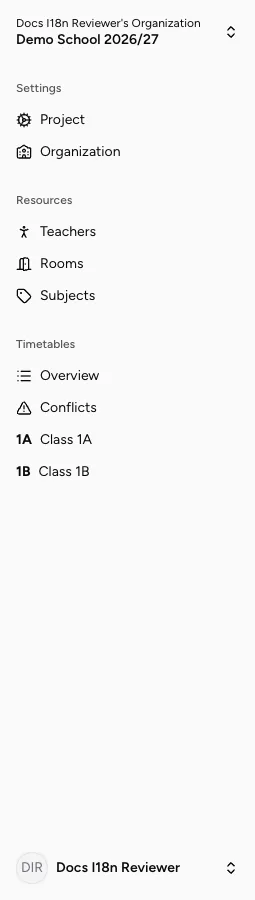
Project navigation with settings, resources, overview, and conflicts.
-
Distinguish the organization and project
An organization groups a school’s members and projects. A project contains the scheduling data for a defined period, such as a school year or semester.
-
Find master data
Under Resources, you will find Teachers, Rooms, and Subjects. Teachers and rooms are collectively called resources because they can be assigned to lessons.
-
Open a timetable
Under Timetables, Overview lists all timetables. A timetable usually represents a class. Selecting a class name beneath it opens that class’s scheduling grid.
-
Prepare lessons
In an open timetable, Lessons opens the list of teaching requirements. A lesson combines a subject with a total and, optionally, teachers and rooms.
-
Read the pool and grid
The Lesson pool beside the grid contains occurrences that have not yet been placed. The five columns are Monday to Friday. Rows come from the Lesson slots in the project settings.
-
Review conflicts
Conflicts shows when the same teacher or room is used at the same time. A number in the sidebar indicates active conflicts.
See the glossary for more terms.
Result
Section titled “Result”You can move between the project, master data, lessons, scheduling grid, and conflict review.