Prepare timetables and lessons
Prepare every teaching requirement before placing lessons in the grid.
Before you begin
Section titled “Before you begin”- Subjects, teachers, and rooms exist in the project.
- You have checked the lesson slots in the project settings.
- You know the class alias and name.
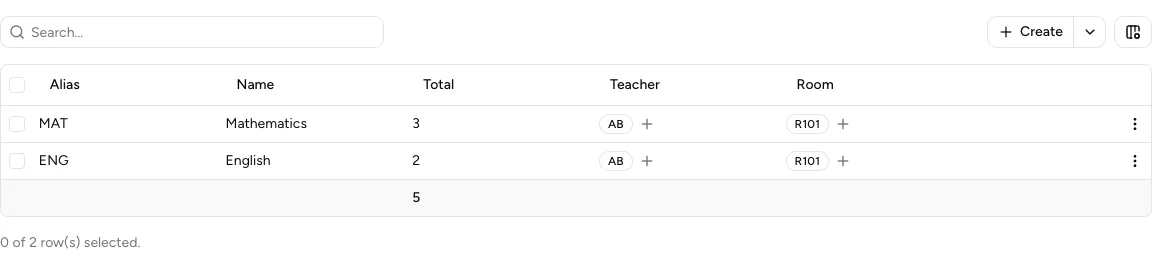
A lesson row shows the subject, total, and assigned teachers and rooms.
-
Create or import a timetable
Open Overview under Timetables. Select Create and enter an Alias and Name, or import a correctly structured XLSX file. A timetable usually represents a class.
-
Add class teachers
Open the timetable and then Settings. Under Class teachers, select Add teacher. Select Remove to undo the assignment.
-
Create a lesson
Open Lessons in the timetable and select Create. Select a Subject and enter the total number of occurrences to place under Total.
-
Assign resources
In the lesson row, select Assign teacher and Assign room. You can assign multiple teachers and rooms to one lesson. Initially, the assignment applies to all occurrences of that lesson.
-
Edit or delete a lesson
Open Actions → Edit to change the subject or total. Actions → Delete permanently removes the lesson and its placements.
-
Copy lessons from another timetable
Select Actions → Copy from …, choose the source timetable, and confirm with Copy lessons.
Teacher and room assignments are not copied when you copy lessons. Timetable placements are not copied either. Assign resources again and schedule every occurrence in the target timetable.
Change or delete a timetable
Section titled “Change or delete a timetable”Under Settings → Timetable details, you can change the Alias and Name and save with Update.
Under Danger!, Delete timetable → Delete permanently removes the timetable and its lessons. Check whether you need an export first.
Result
Section titled “Result”The class timetable contains the required lessons with totals and resources. Occurrences that have not been placed are available in the lesson pool.
If it does not work
Section titled “If it does not work”- If a subject, teacher, or room is missing, create it in the same project.
- If a lesson is absent from the pool, check whether its total has already been fully placed.
- Missing resources after copying are expected; assign teachers and rooms again in the target timetable.