Configure projects, organizations, and timetables
Adjust shared settings without losing sight of the scheduling structure.
Before you begin
Section titled “Before you begin”- You have opened the affected project.
- Before changing lesson slots, review lessons that are already placed.
- Use an image file under 1 MB for a logo.
Change the project name
Section titled “Change the project name”-
Open project settings
Select Project settings in the sidebar.
-
Save the name
Change Project name and select Save.
Set lesson slots
Section titled “Set lesson slots”Lesson slots are the rows of the timetable grid, such as 08:00–08:45 or Period 1.
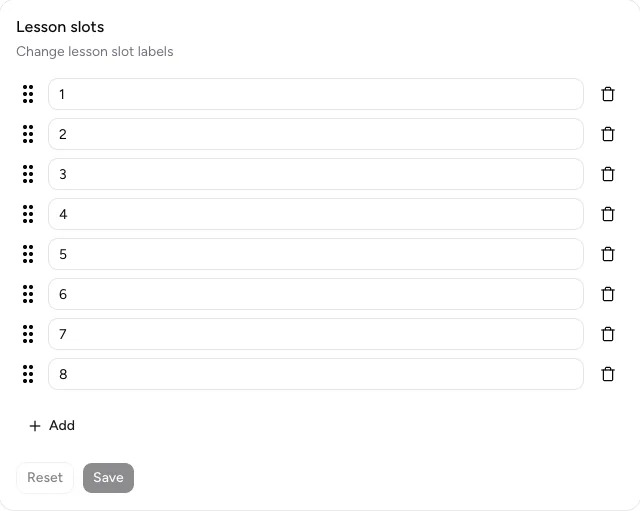
Lesson slots can be added, renamed, deleted, and reordered with the handle.
-
Edit a slot
Change the text directly in the input field.
-
Add or delete a slot
Select Add for a new row or the trash icon to remove one.
-
Change the order
Drag a slot by its handle to the required position.
-
Save changes
Select Save. Reset discards changes that have not been saved.
The order and labels are used directly as grid rows. Check existing placements carefully after structural changes.
Customize the organization
Section titled “Customize the organization”-
Open the organization
Open your user menu at the bottom of the sidebar and select Organization settings.
-
Change the name
Edit Organization name and select Save changes.
-
Upload a logo
Select Upload logo and choose an image under 1 MB. Select Delete logo to remove the current image.
Configure a timetable
Section titled “Configure a timetable”-
Open settings
Open the timetable and select Settings.
-
Change details
Under Timetable details, change the Alias or Name and select Update.
-
Manage class teachers
Select Add teacher. Select Remove to undo an existing assignment.
For permanent deletion, see projects and timetables and lessons.
Result
Section titled “Result”Changed names appear in navigation and overviews. Lesson slots form the grid rows; the organization and timetable show the updated details.
If it does not work
Section titled “If it does not work”- If Save is disabled, no change has been detected yet.
- If a logo is rejected, check that the file is smaller than 1 MB.
- If grid rows are incorrect, reload the timetable after saving and compare the slot order.