Review and resolve conflicts
Identify affected lessons, resolve genuine overlaps, and approve only intentional double bookings.
Before you begin
Section titled “Before you begin”- Lessons have been placed in the project.
- Teachers and rooms are assigned to lessons or individual placements.
- The latest scheduling changes have finished saving.
A conflict means that the same teacher or room is assigned to more than one lesson at the same time in the project.
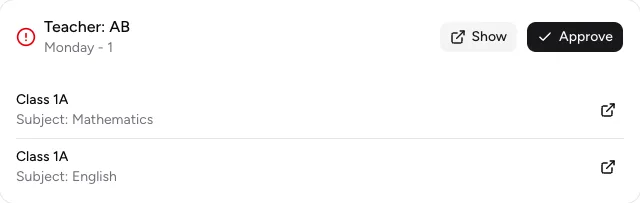
An active conflict card names the resource, weekday, lesson slot, and affected classes.
-
Open active conflicts
Select Conflicts in the sidebar. The number beside it shows the active conflict count. The Active tab contains overlaps that have not been approved.
-
Read the details
Check the resource type and alias, weekday and lesson slot, and the Class and Subject of every affected placement. Show opens the resource timetable; the arrow beside a class opens its timetable.
-
Resolve the conflict
Move one lesson to another cell, or change the teacher or room on the lesson or only on the affected placement.
-
Approve an intentional overlap
If the double booking is correct, select Approve on that specific conflict card. There is no bulk approval.
-
Review the result again
Reopen Active and Approved after later placement or resource changes. A changed overlap may appear as active again.
Approve does not move a placement or resolve the double booking. It only confirms that you reviewed the overlap.
Result
Section titled “Result”Genuine double bookings are resolved. Intentionally approved conflicts remain visible under Approved while the underlying overlap exists.
If it does not work
Section titled “If it does not work”- If a resolved conflict stays active, check every listed class and whether the resource remains on a second placement.
- If an approved conflict disappears after a change, the original overlap was changed or resolved.
- If the sidebar count increases after a change, open Active and review the newly calculated conflicts.