Schedule lessons in the timetable
Fill the weekly grid and, when needed, adjust resources for one occurrence.
Before you begin
Section titled “Before you begin”- The timetable contains lessons with a total greater than zero.
- Teachers and rooms are assigned to the lessons.
- The lesson slots are saved in the required order.
The five columns represent Monday to Friday. Row labels come from Project settings → Lesson slots.
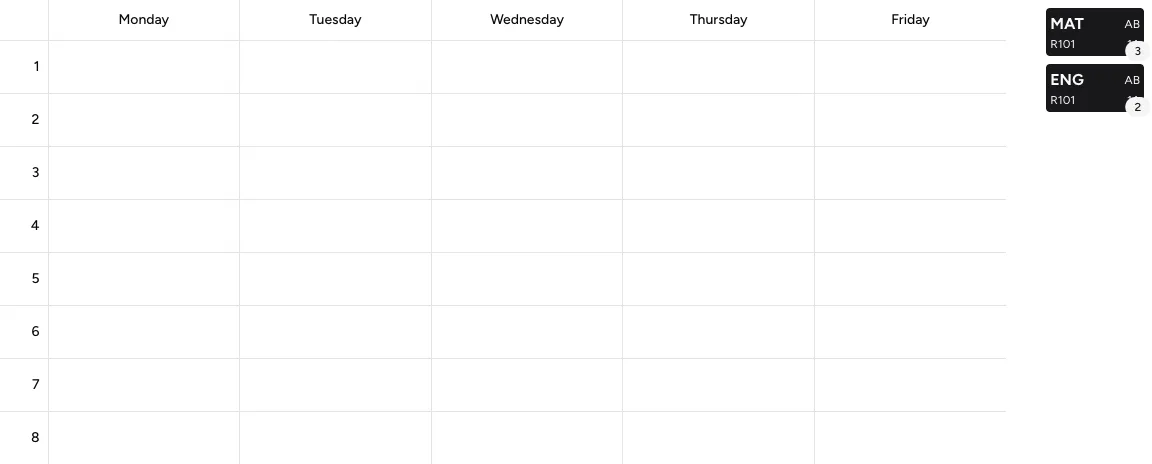
Available occurrences appear in the lesson pool beside the empty grid.
-
Place a lesson
Drag a card from the Lesson pool into an empty cell. The count on the pool card shows how many occurrences remain and decreases after each placement.
-
Move a placement
Drag a placed card to another cell. Wait for Saved before moving the next card.
-
Return a placement
Drag a placed card out of the grid, for example into the lesson-pool area. The occurrence disappears from the cell and becomes available in the pool again.
-
Stack lessons
Drag a pool card or placement onto an occupied cell. Drop it to the left or right of the existing card.
-
Change the order
Drag a card within the occupied cell to the left or right of the other card. The visual order is saved.
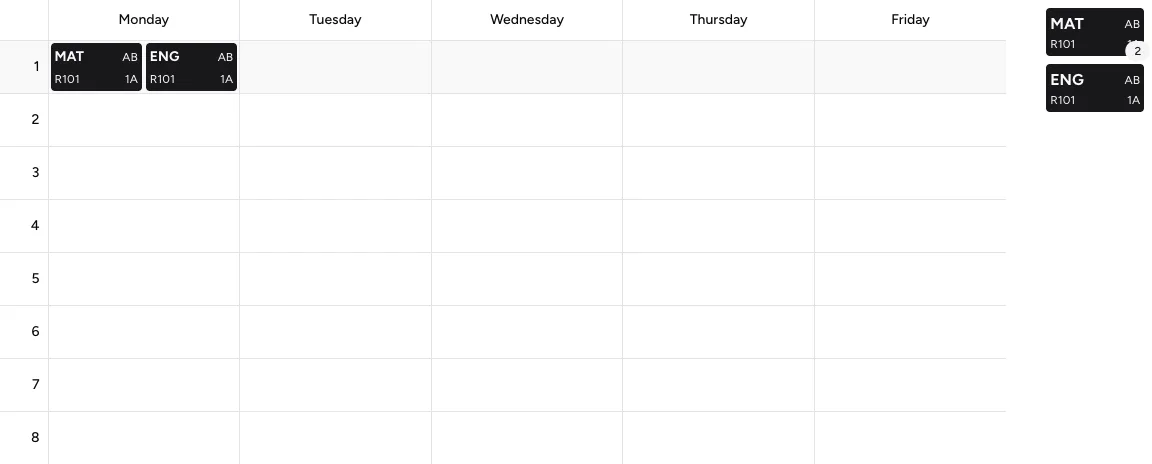
Multiple lessons can share one cell and be arranged from left to right.
Adjust resources for one occurrence
Section titled “Adjust resources for one occurrence”-
Open the placement
Select the placed card. The Edit placement dialog shows the subject, teachers, and rooms.
-
Add or remove a resource
Select Add teacher or Add room. Select an existing alias and then Remove to remove it from this occurrence only.
-
Hide or show a resource
Select the alias and then Hide or Show. A hidden resource remains assigned but does not appear in exports by default.
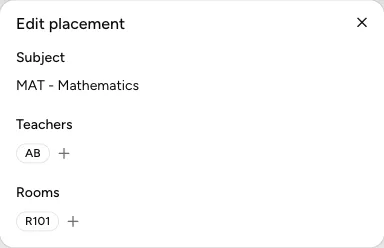
In the placement dialog, changes to teachers and rooms apply only to this occurrence.
Result
Section titled “Result”Every placed occurrence is at the intended weekday and lesson slot. Stacking, order, and differing resources remain after reloading.
If it does not work
Section titled “If it does not work”- If Saving… appears, wait for Saved; another movement is blocked in the meantime.
- For Failed to save, reload the page and check whether the last movement was applied.
- If a card is missing from the pool, open Lessons and check whether every occurrence in the total is already placed.
- If a resource cannot be selected, check that it exists in the same project.